
How to Make a Christmas Greeting Video in Premiere Pro (Step by Step + 12 Wishes)
Make a Christmas video card in Premiere Pro in about 10 minutes: choose a size, add a Christmas MOGRT, type your wishes and export. Plus 12 short Christmas wishes to copy.
 6 min read
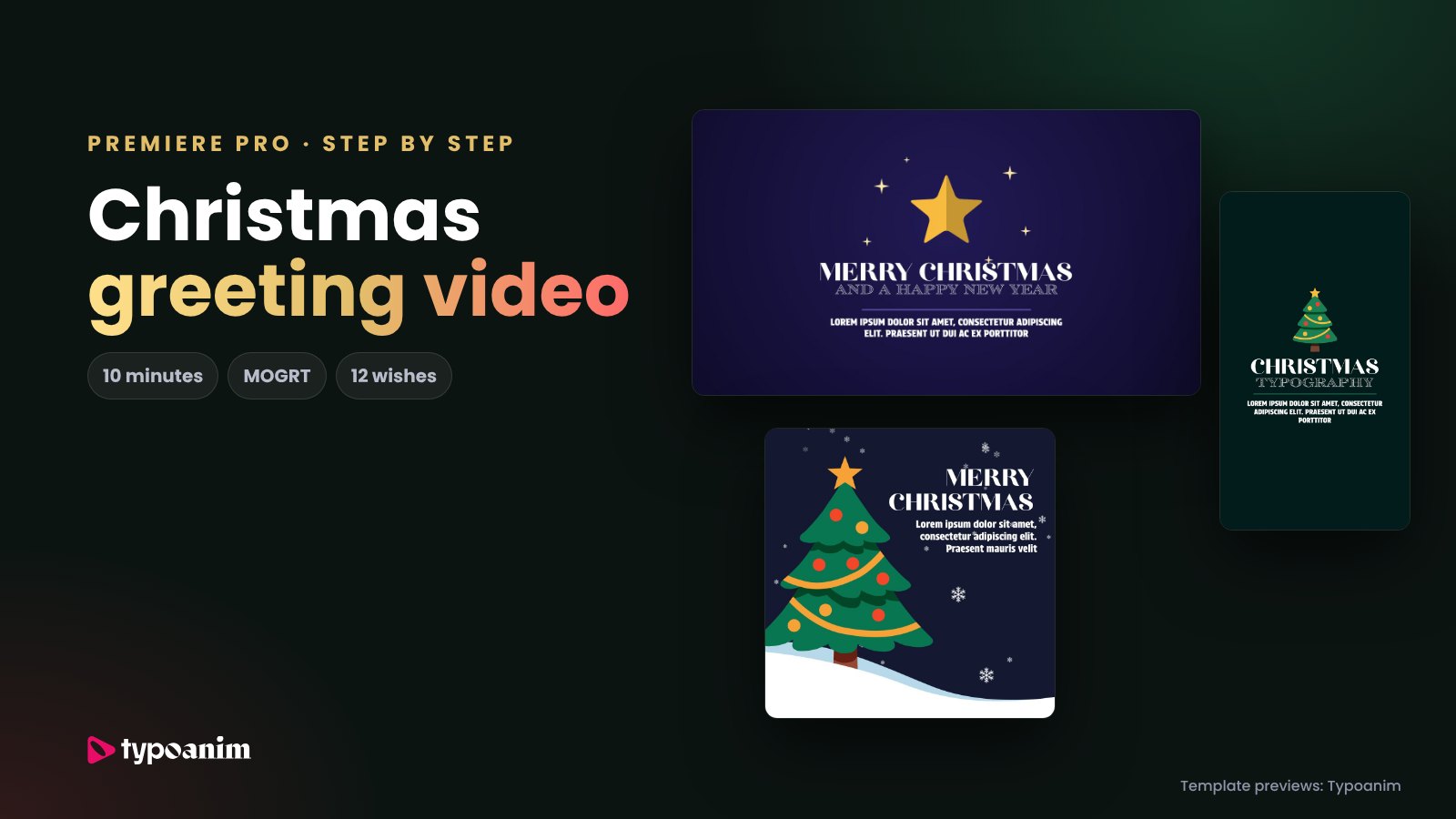
Short answer: to make a Christmas greeting video in Premiere Pro, choose a Christmas title template (MOGRT) in the size you need, install it in the Graphics Templates panel, drag it onto your timeline, type your wishes in Properties > Templates, add a photo or clip and music, and export an MP4. With a template, it takes about 10 minutes.
A short video card is the easiest way to say "Merry Christmas" to clients, followers, friends and family, and it works everywhere: Instagram, WhatsApp, email and YouTube. Christmas Day 2026 is on a Friday, so most people will post or send their greetings between December 21 and 25. Here is how to make one in Premiere Pro, which size to choose, and what to write.
In this guide
Step 1Choose the right size
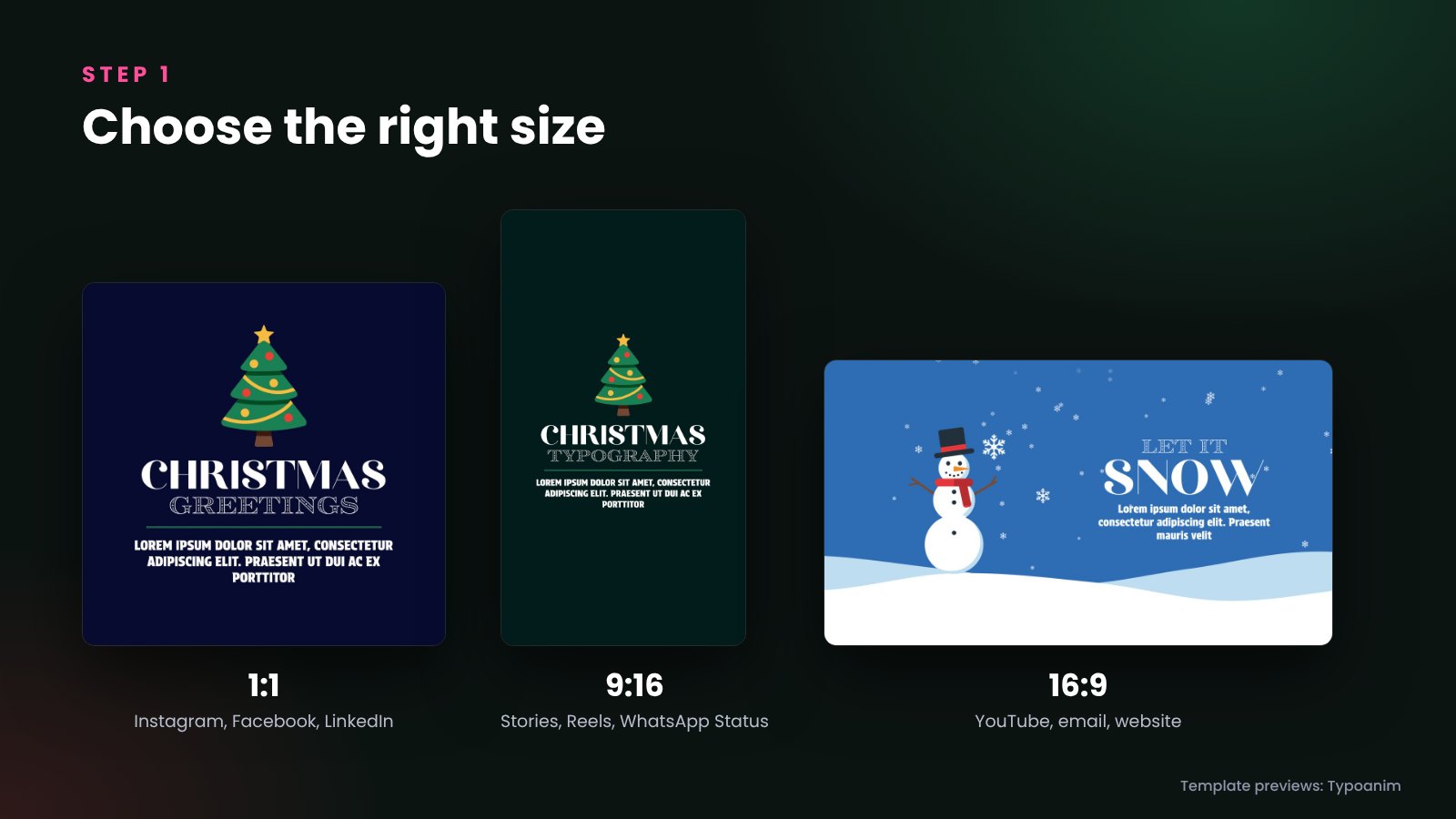
- Square 1:1 (1080 x 1080): Instagram and Facebook posts, LinkedIn.
- Vertical 9:16 (1080 x 1920): Instagram Stories and Reels, TikTok, WhatsApp Status, YouTube Shorts.
- Horizontal 16:9 (1920 x 1080): YouTube, email newsletters, websites and the end of a holiday video.
If you send the video in WhatsApp chats, square or vertical works best on phones.
Step 2Make a Christmas greeting video in Premiere Pro
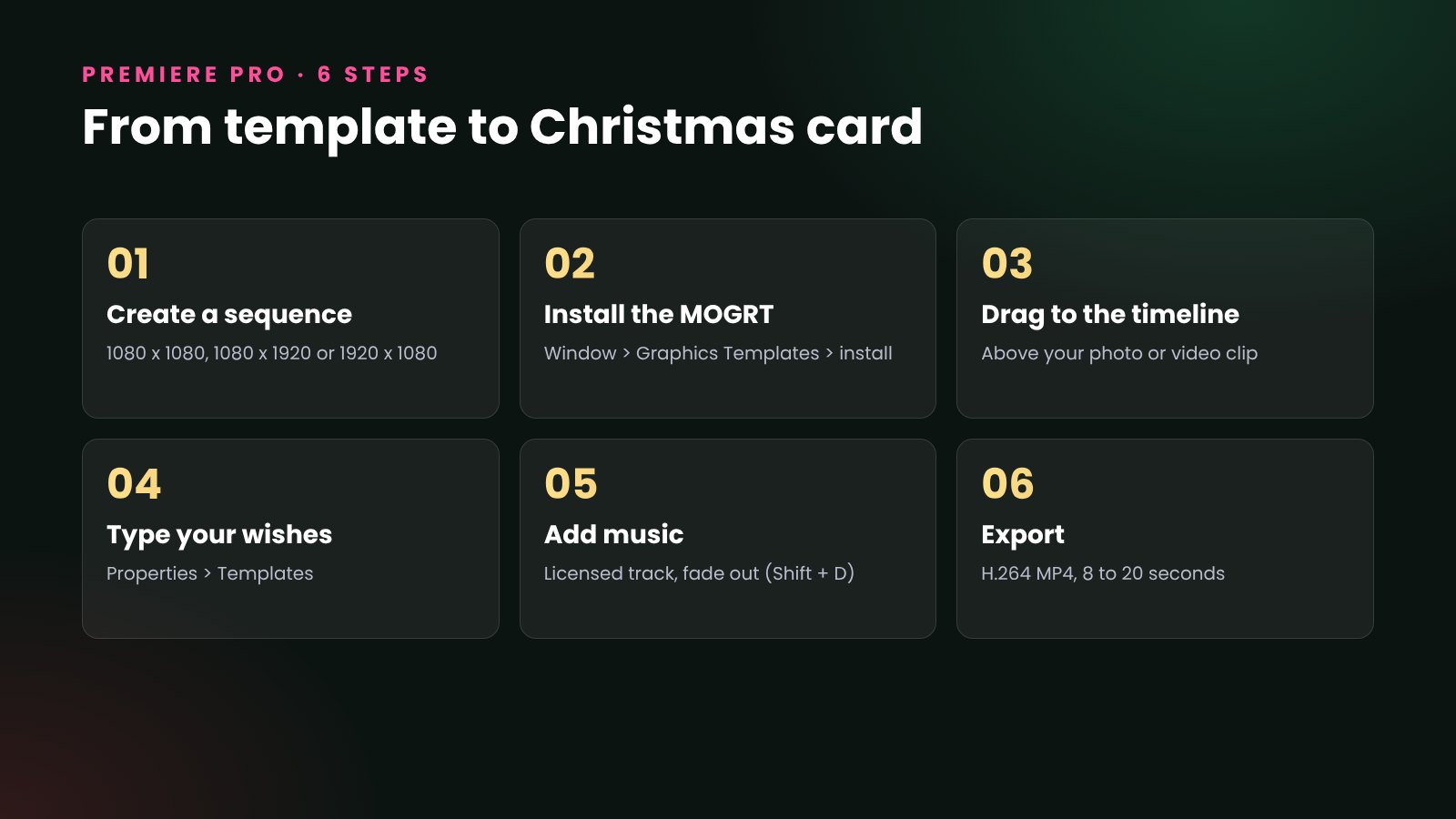
- Create a sequence in the size you chose: File > New > Sequence, or drop a clip with the right size onto the New Item icon.
- Install the template. Open Window > Graphics Templates, click the install button and choose the .mogrt file. It appears in your local templates.
- Drag it to the timeline, on a track above your background clip or photo.
- Type your wishes. Select the clip and open Properties > Templates. Change "Merry Christmas", the subline and your name, and adjust colors if the template allows it.
- Add music. Use a track you have the rights to, and fade it out over the last second (Shift + D adds the default audio fade).
- Export. File > Export > Media, format H.264, match the sequence size, 30 fps. Short is sweet: 8 to 20 seconds is enough for a greeting.
Step 3What to write: 12 short Christmas wishes
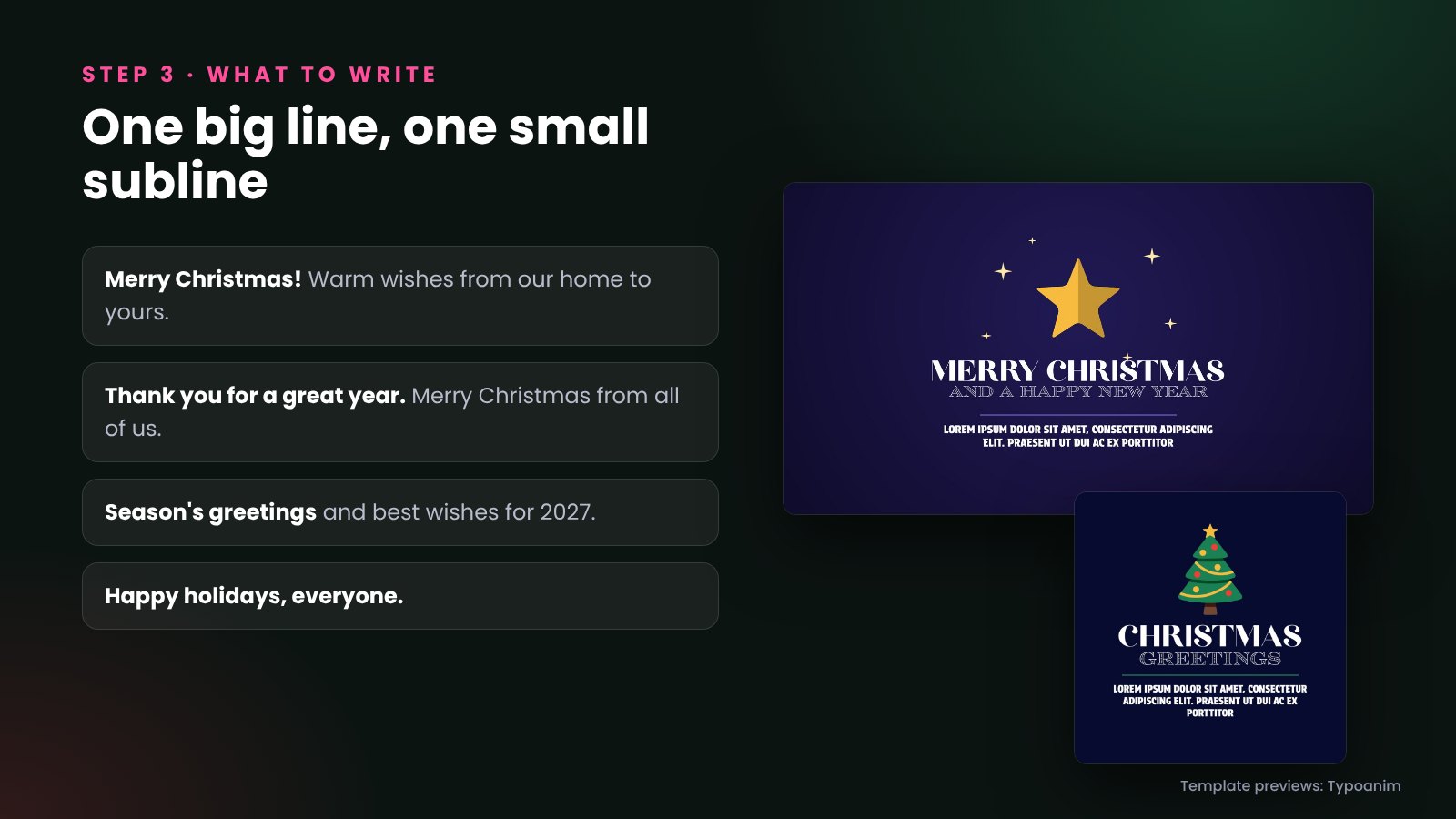
On screen, fewer words look better. Use one big line and one small subline. Some ideas you can copy:
For friends and family
- Merry Christmas! Warm wishes from our home to yours.
- Wishing you a cozy Christmas and a bright New Year.
- Peace, love and plenty of cookies this Christmas.
- Merry Christmas! So glad you're in our lives.
For clients and customers
- Thank you for a great year. Merry Christmas from all of us.
- Season's greetings and best wishes for 2027.
- Happy holidays! We look forward to working with you in 2027.
- Thank you for being part of our story this year.
For social media
- Merry Christmas from our team!
- Happy holidays, everyone.
- Our office is closed Dec 24 to 26. Merry Christmas!
- Thank you for 2026. See you next year.
Making it in After Effects instead
If you use After Effects, open the template project, find the main composition, double-click the text layers to change the wishes, replace the image placeholders and add the comp to the Render Queue. After Effects templates usually have more animation options, while MOGRTs are faster to edit in Premiere Pro.
Tips for a better video card
- Personalize it: add a short clip or photo of your family, team or product behind the title.
- Use your colors: classic red and green, or your brand colors with gold accents.
- Add the year carefully: "Happy New Year 2027" dates the video, so make two versions if you post it after New Year.
- Check fonts: install the fonts listed in the template before you open it, so your text looks the same as the preview.
- Make a vertical copy for Stories, even if your main video is square or horizontal.
Christmas greeting templates
All of these work in Premiere Pro or After Effects 2023 and later, including the 2027 versions.
Christmas greeting video: FAQ
How do I make a Christmas video card for free?
You can type a title with Premiere Pro's Type tool and add a photo and music. A template saves time because the animation, snow and decorations are already done.
How long should a Christmas greeting video be?
8 to 20 seconds. Long enough to read the wishes twice, short enough to watch to the end.
What size is a Christmas video for Instagram?
1080 x 1080 for a feed post and 1080 x 1920 for Stories and Reels.
Can I send a Christmas video on WhatsApp?
Yes. Export an H.264 MP4 and keep it short so it stays small. Square or vertical videos look best in chats.
Christmas greeting video: the short version
Pick a size, install a Christmas MOGRT, drag it to the timeline, write one line of wishes in Properties > Templates, add a photo and music, and export an MP4. Ten minutes, and your card is ready for Instagram, WhatsApp and email.
— Mansura