
How to Use MOGRT Templates in Premiere Pro: Install, Edit and Export (Video Tutorial)
A step-by-step video tutorial for your Typoanim premium MOGRT templates: install the .mogrt file in Premiere Pro, edit text, colors and images, change the duration and export the final video.
 7 min read
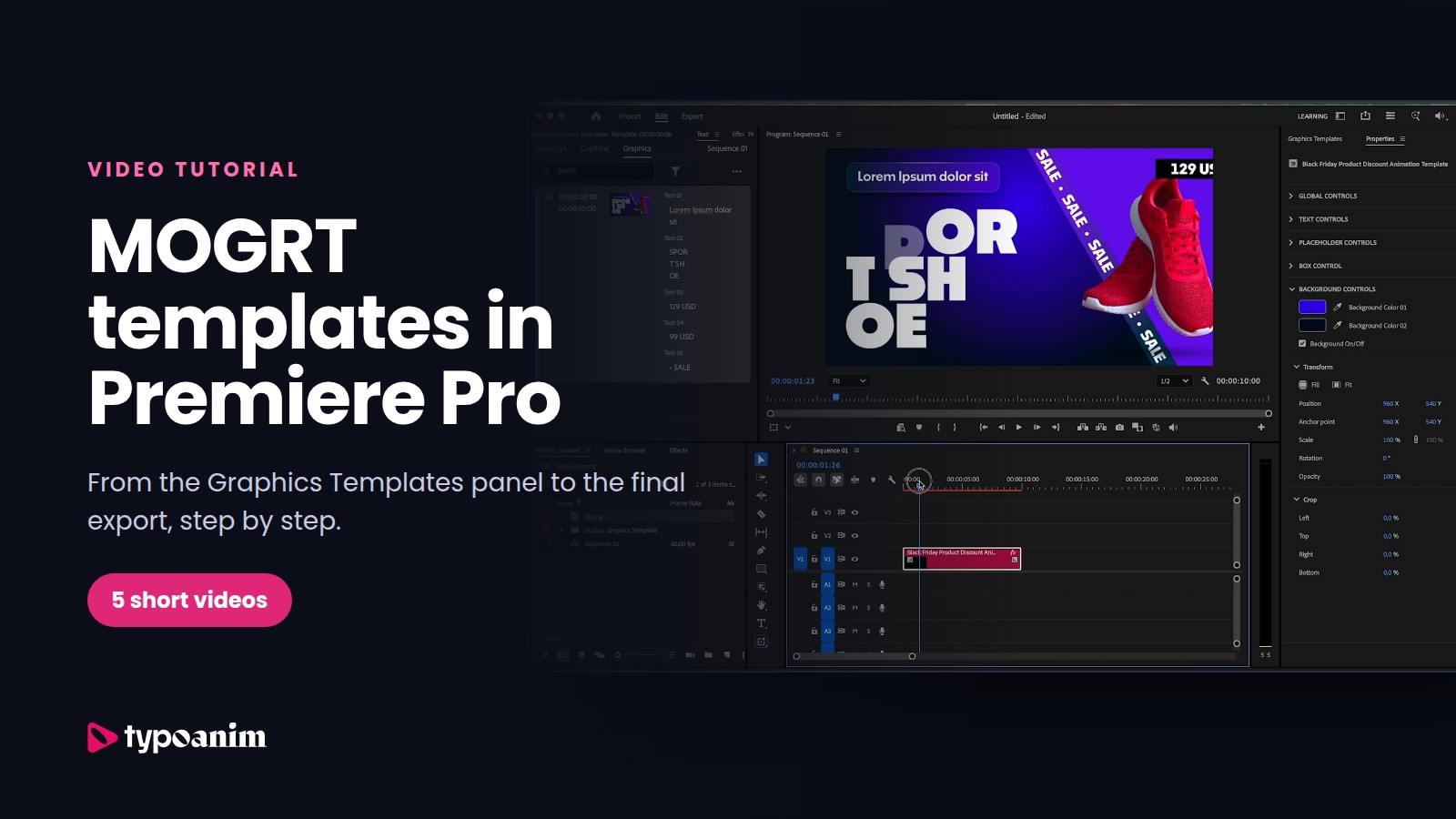
You just bought a premium template from Typoanim's Premium Templates collection, the ZIP file is in your Downloads folder, and now you want to see it on your timeline. This page is the official Typoanim tutorial for using a Premiere Pro MOGRT template: how to install the .mogrt file, how to edit the text, colors and images, how to change the duration and how to export the finished video. Every step comes with a short screen recording, so you can follow along click by click.
The guide is written for Typoanim's premium MOGRT files, but the workflow is the same for almost any motion graphics template you use in Adobe Premiere Pro.
What is a MOGRT file in Premiere Pro?
A MOGRT (short for Motion Graphics Template) is a single file with the .mogrt extension that holds a ready-made animation: titles, lower thirds, transitions, logo reveals, infographics or product promos. The animation is designed in After Effects, but you edit it directly inside Premiere Pro. You never need to open After Effects or have it installed: the text fields, colors, image placeholders and other settings appear as simple controls in Premiere Pro.
What you need: Adobe Premiere Pro 2023 or later, and the ZIP file you downloaded from your Typoanim account. Every Typoanim premium MOGRT animates at 60 fps.
In this MOGRT tutorial
Step 1How do you create a new sequence in Premiere Pro?
As shown in the video above, start with a fresh sequence. In Premiere Pro, go to File > New > Sequence, switch to the Settings tab and set the Timebase (frame rate) to 60 frames/second. Typoanim templates are animated at 60 fps, so a 60 fps sequence keeps the motion perfectly smooth. Give the sequence a name and click OK.
Next, open the panel where your motion graphics templates live: choose Window > Graphics Templates from the top menu. In older versions of Premiere Pro, the same panel is called Essential Graphics (Window > Essential Graphics, Browse tab).
Step 2How do you install a MOGRT file in Premiere Pro?
In this video we first unzip the template we downloaded from Typoanim. On a Mac, simply double-click the ZIP file in Finder and a folder with the same name appears next to it. On Windows, right-click the ZIP file and choose Extract All, then click Extract. Inside the folder you will find the .mogrt file, a Tutorial.pdf and a Used Fonts.pdf.
To install the MOGRT, drag the .mogrt file from the folder and drop it into the Graphics Templates panel. Premiere Pro adds it to your templates (My Templates) and you can use it in any project from now on. Then drag the template from the panel onto your sequence. For a second you may see a "Media offline" frame while Premiere Pro loads the motion graphics template; this is normal and disappears on its own.
Tip: before editing, install the fonts listed in Used Fonts.pdf. They are free on Google Fonts or included with Creative Cloud through Adobe Fonts, and they make sure your text looks exactly like the preview.
Step 3How do you edit a MOGRT template in Premiere Pro?
The video above shows how to customize the template. Double-click the template layer in your sequence and all of its settings open in the Properties panel. Every change happens here: type your own text in the text fields, choose the font, size and color, switch the background on or off and pick new colors with the color picker. In older Premiere Pro versions you will find the same controls in the Edit tab of the Essential Graphics panel.
To replace a photo or product image, drag your picture from Finder or File Explorer and drop it onto the image placeholder control (for example Your Image), just as you see in the video. Typoanim premium templates group their controls into clearly named sections, such as Text Controls, Placeholder Controls and Background Controls, so you always know where to look.
Step 4How do you change the duration of a MOGRT?
As you can see in this short video, changing the length of a MOGRT is as easy as trimming a clip. Drag the end of the template layer on the timeline to make it longer or shorter. The intro and outro animations stay untouched; only the part in the middle, where your text is fully on screen, gets longer or shorter. That way the animation always fits the length of your voiceover or music.
Step 5How do you export your video from Premiere Pro?
When everything looks right, the video shows the last step: render your video. Go to File > Export > Media (or press Cmd+M on Mac, Ctrl+M on Windows). In the Export window, set the file name and the folder where the video will be saved, keep the H.264 format with the Match Source preset for a high-quality MP4, and click Export in the bottom right corner. That's all there is to it.
Do free and premium MOGRT templates work the same way?
This tutorial used a MOGRT from Typoanim's Premium Premiere Pro templates. Free templates follow the same steps, but they are a little less convenient to customize: our team puts most of its focus on the Premium collection, so premium MOGRTs come with the most organized, user-friendly controls, more options to customize and a step-by-step Tutorial.pdf in every download.
Quick answers to common MOGRT questions
Do I need After Effects to use a MOGRT file?
No. A MOGRT is made to be edited inside Premiere Pro. After Effects is only needed to create the template, not to use it.
Where is the Essential Graphics panel in Premiere Pro?
In newer versions of Premiere Pro, it has been split into the Graphics Templates panel (to browse and install templates) and the Properties panel (to edit them). Both are in the Window menu.
Why does my MOGRT show different fonts than the preview?
The fonts used in the template are not installed yet. Open Used Fonts.pdf in the template folder and install or activate the listed fonts, then reopen the project.
Can I use the same MOGRT in another project?
Yes. Once a .mogrt file is installed in the Graphics Templates panel, it stays there and is available in every new Premiere Pro project.
Want to practice the same steps? The template from the videos is the Black Friday Widescreen Running Shoe Sale Stripe MOGRT for Premiere Pro, a widescreen product promo with editable text, price, image placeholder and background colors.
Ready for the next edit? Discover more animated titles, transitions, logo reveals and infographics in the Typoanim library.