
How to Use the AI Assistant in After Effects 2027: Expressions, Fixes and MOGRTs
We tested the new AI Assistant in After Effects 2027 step by step: writing a looping expression, fixing a broken wiggle expression, preparing a MOGRT for Premiere Pro and organizing a project.
 7 min read
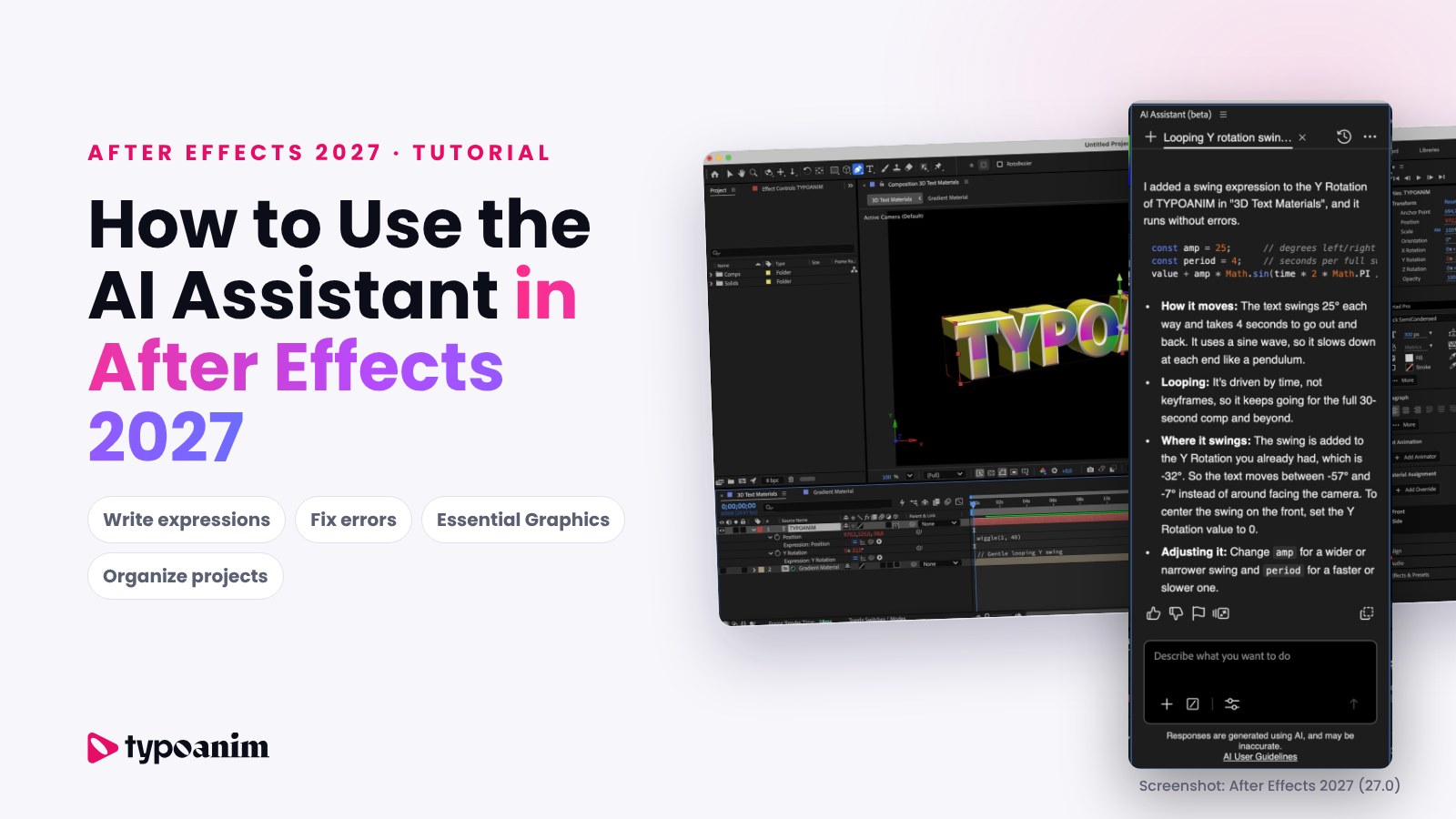
After Effects 2027 (version 27.0): we tested the After Effects AI Assistant ourselves. Every prompt, answer and screenshot in this guide comes from the real After Effects 2027 release.
The AI Assistant is the most talked-about new feature in After Effects 2027. It is a panel where you describe a task in plain words, and After Effects does the work: it writes and fixes expressions, organizes your project, prepares Essential Graphics for MOGRT templates and can even generate images and video.
In this guide you will learn how to use the After Effects AI Assistant step by step. We asked it to write a looping expression, fix a broken wiggle expression, prepare a title for Premiere Pro and clean up a project, and we show you exactly what happened.
In this After Effects AI Assistant guide
- What is the After Effects AI Assistant?
- Step 1: Open the AI Assistant panel
- Step 2: Write an expression with AI
- Step 3: Approve each action
- Step 4: Fix expression errors with AI
- Step 5: Prepare a MOGRT with Essential Graphics
- Step 6: Organize your project
- Does the AI Assistant use generative credits?
- Prompts to try
- FAQ
What is the After Effects AI Assistant?
The After Effects AI Assistant is a new panel in After Effects 2027 (27.0) that turns natural-language requests into actions in your project. The panel is still labeled AI Assistant (beta). According to Adobe, it can:
- Work with expressions: write a new expression from a description, explain an existing one, and find and explain errors.
- Organize projects: rename, restructure and color-code layers, comps and folders.
- Work with text and shape layers: edit parts of a text layer, add or reorder shape operators.
- Work with Essential Graphics: expose properties and export Motion Graphics templates (MOGRT).
- Generate images and video with Adobe Firefly and partner models.
- Render compositions.
You can also add custom skills to tailor the Assistant to your own workflow.
Step 1How do you open the AI Assistant in After Effects?
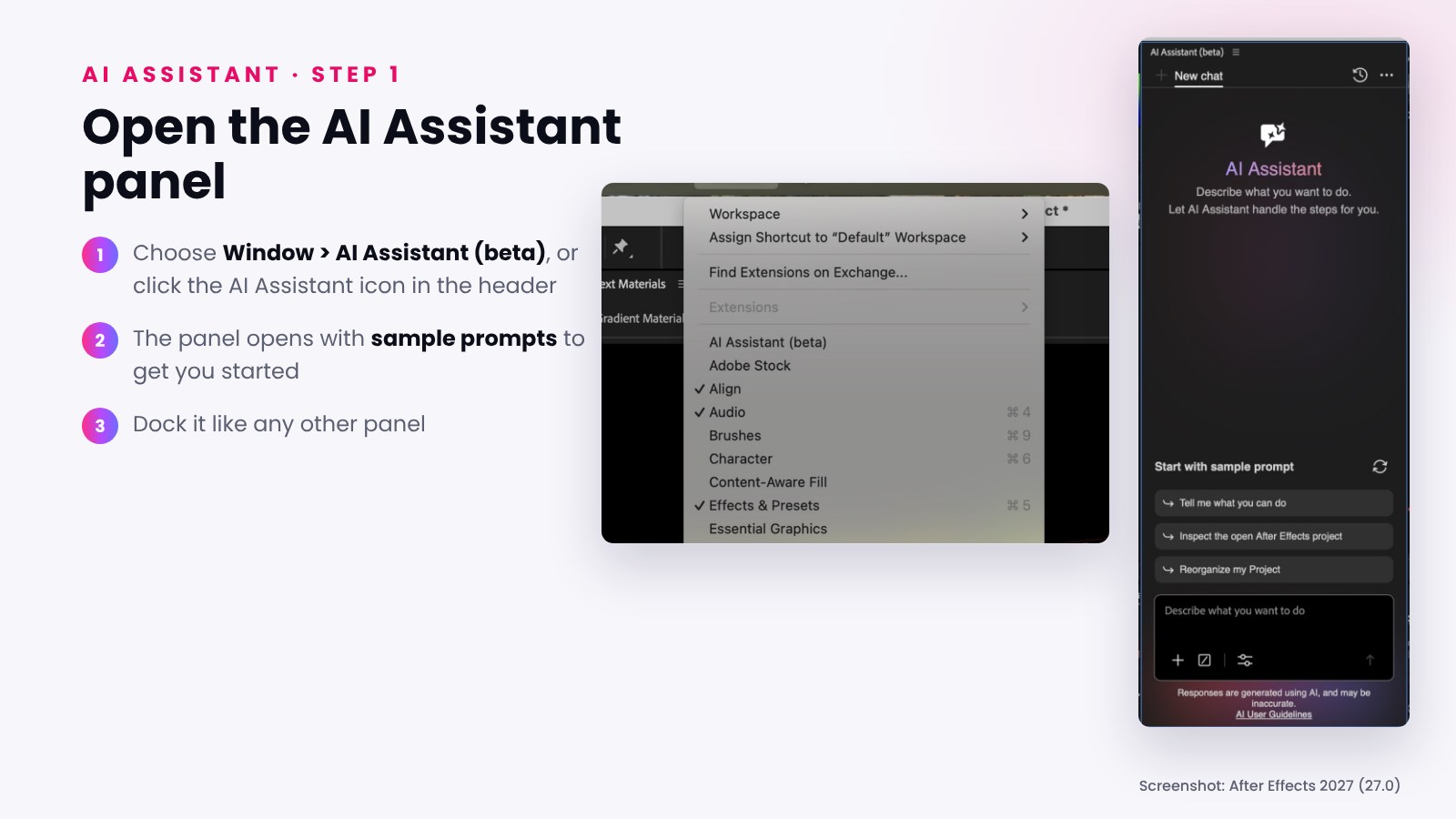
- Open a project in After Effects 2027.
- Choose Window > AI Assistant (beta), or click the AI Assistant icon in the header bar. You can also find it through Quick Apply.
- The panel opens with sample prompts such as "Tell me what you can do", "Inspect the open After Effects project" and "Reorganize my Project".
The AI Assistant is only available in regions where Adobe's Creative AI services are supported. In enterprise accounts, an administrator has to give users access in the Adobe Admin Console.
Step 2How do you write an After Effects expression with AI?
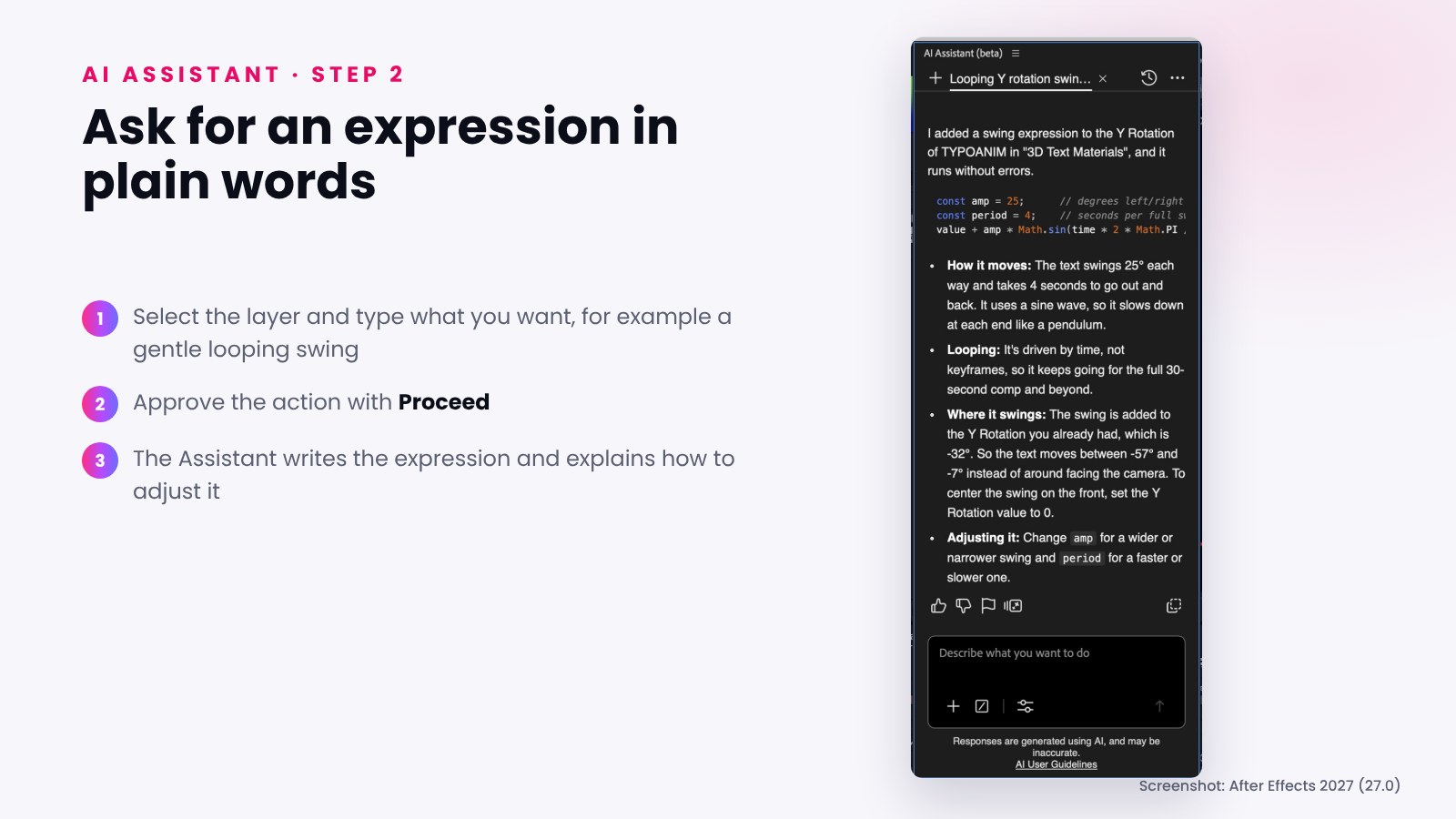
Expressions are where the AI Assistant saves the most time. We selected our 3D title layer and typed:
"Add an expression to the Y Rotation of the TYPOANIM layer so it gently swings left and right and loops forever."
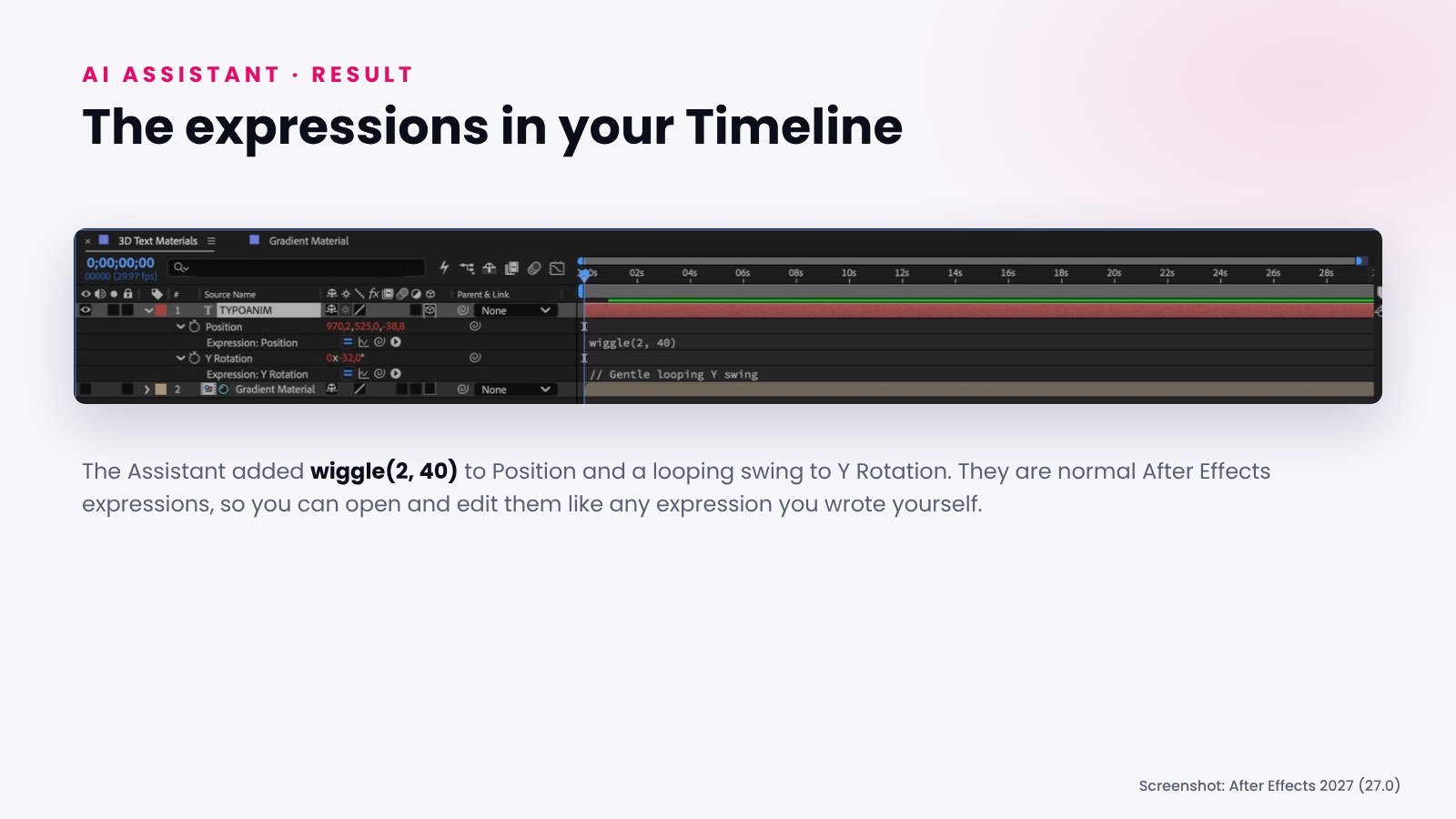
The Assistant added a sine-wave expression to Y Rotation and explained it in plain language. It looked like this:
const amp = 25; // degrees left/rightconst period = 4; // seconds per full swingvalue + amp * Math.sin(time * 2 * Math.PI / period)
It also explained that the swing is driven by time instead of keyframes, so it loops for the whole comp, and that you can change amp for a wider swing or period for a slower one. It even noticed that the layer already had a Y Rotation of -32° and told us how to center the swing.
Step 3How does the AI Assistant ask for permission?
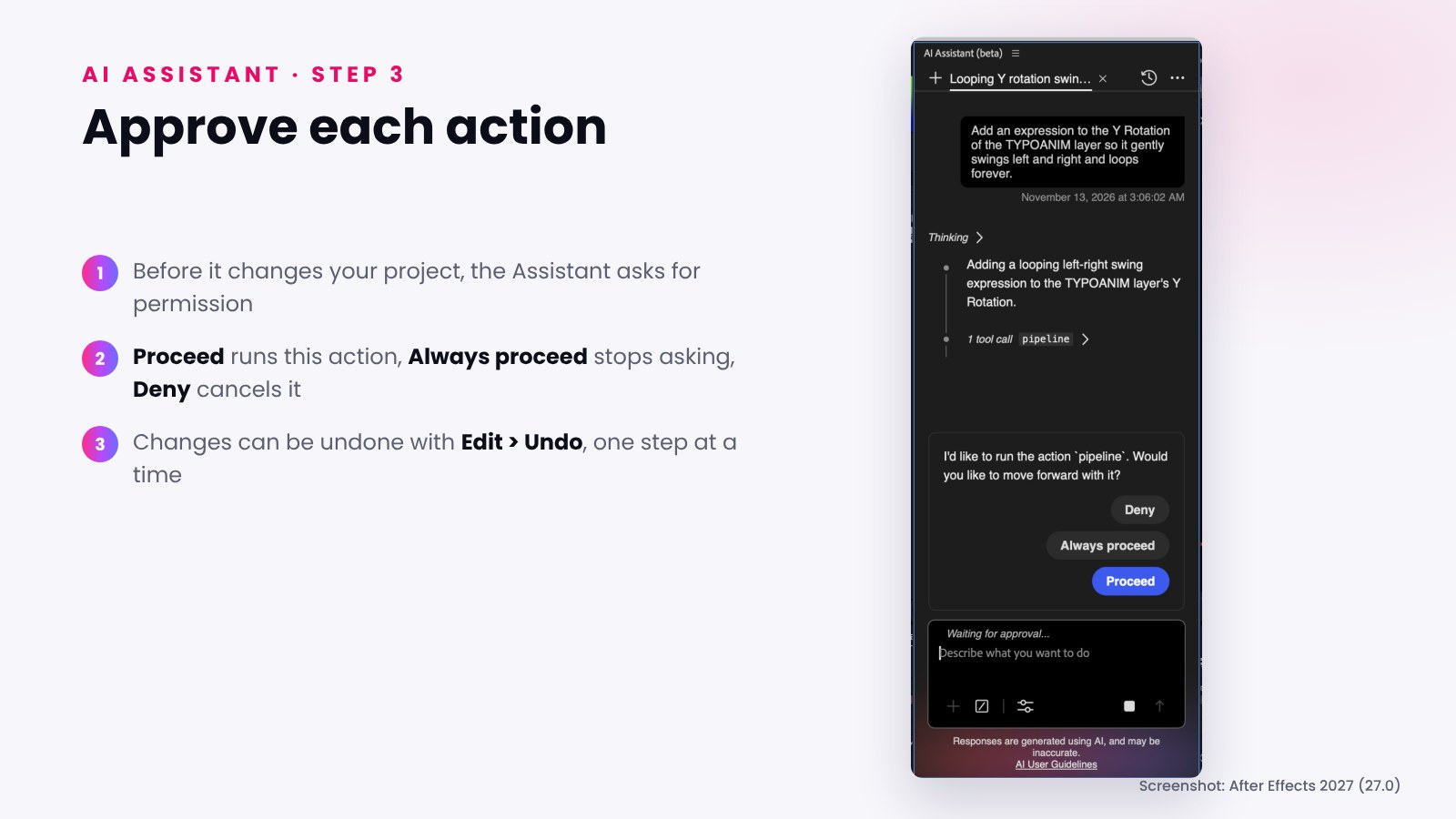
By default the AI Assistant asks before it changes anything in your project:
- Proceed runs this one action.
- Always proceed lets it continue without asking.
- Deny cancels the action.
You can change this behavior with the settings icon in the prompt bar. If you don't like a result, use Edit > Undo. Undo steps back one change at a time, not the whole request at once.
Step 4How do you fix expression errors with AI?
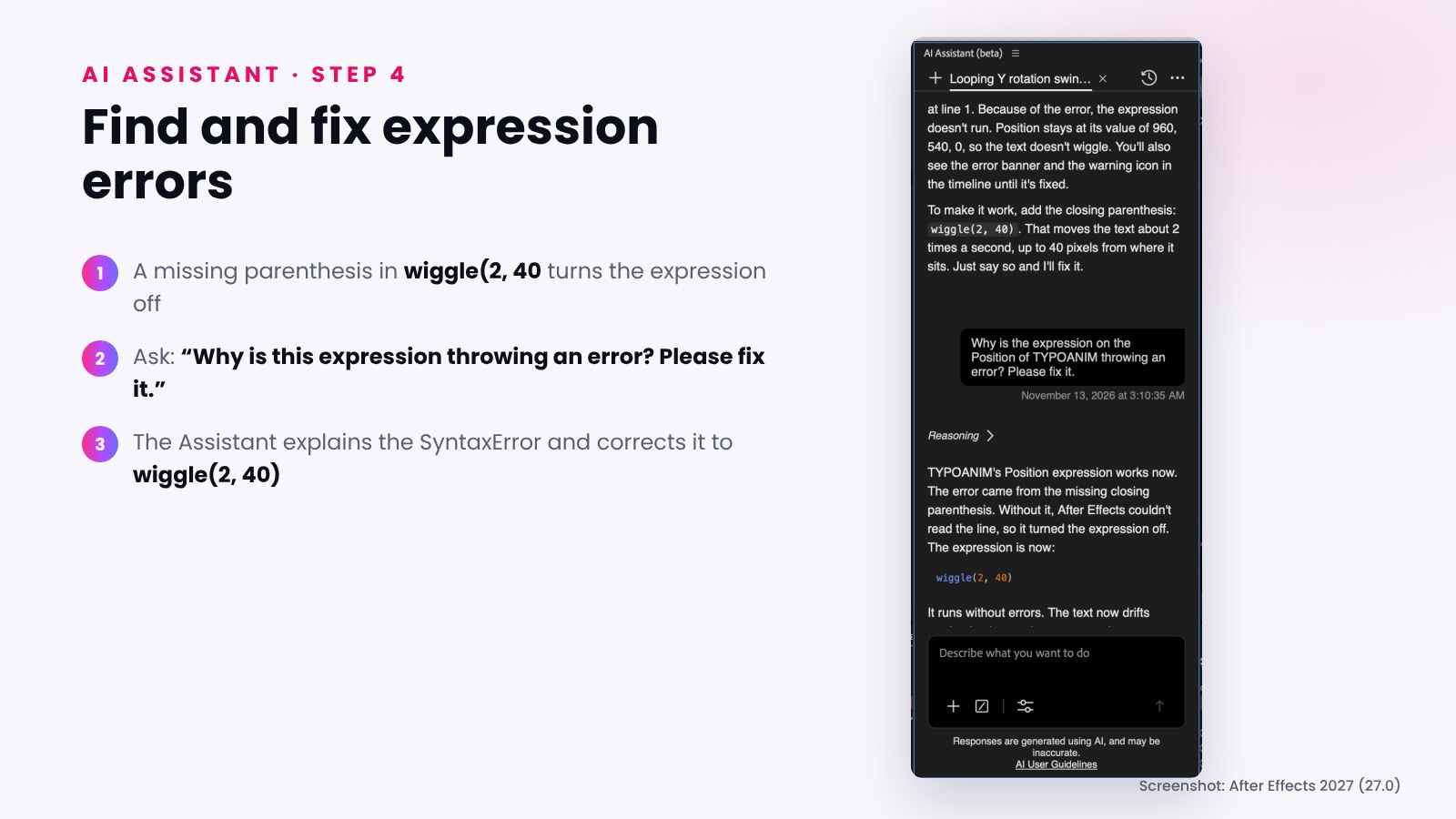
To test it, we added a broken expression to Position on purpose: wiggle(2, 40, with the closing parenthesis missing. After Effects showed the orange expression error bar and turned the expression off.
Then we asked: "Why is the expression on the Position of TYPOANIM throwing an error? Please fix it." The Assistant:
- quoted the error, "SyntaxError: missing ) after argument list", and explained that it was on line 1;
- fixed the expression to
wiggle(2, 40); - explained what the fixed wiggle does: the text moves about 2 times a second, up to 40 pixels from its position;
- pointed out that on a 3D layer the wiggle also moves the text in depth, and offered to limit it to X and Y.
For beginners this is the most useful part. Instead of searching forums for an error message, you get a plain-language explanation and a fix in your project.
Step 5Can the AI Assistant prepare a MOGRT for Premiere Pro?
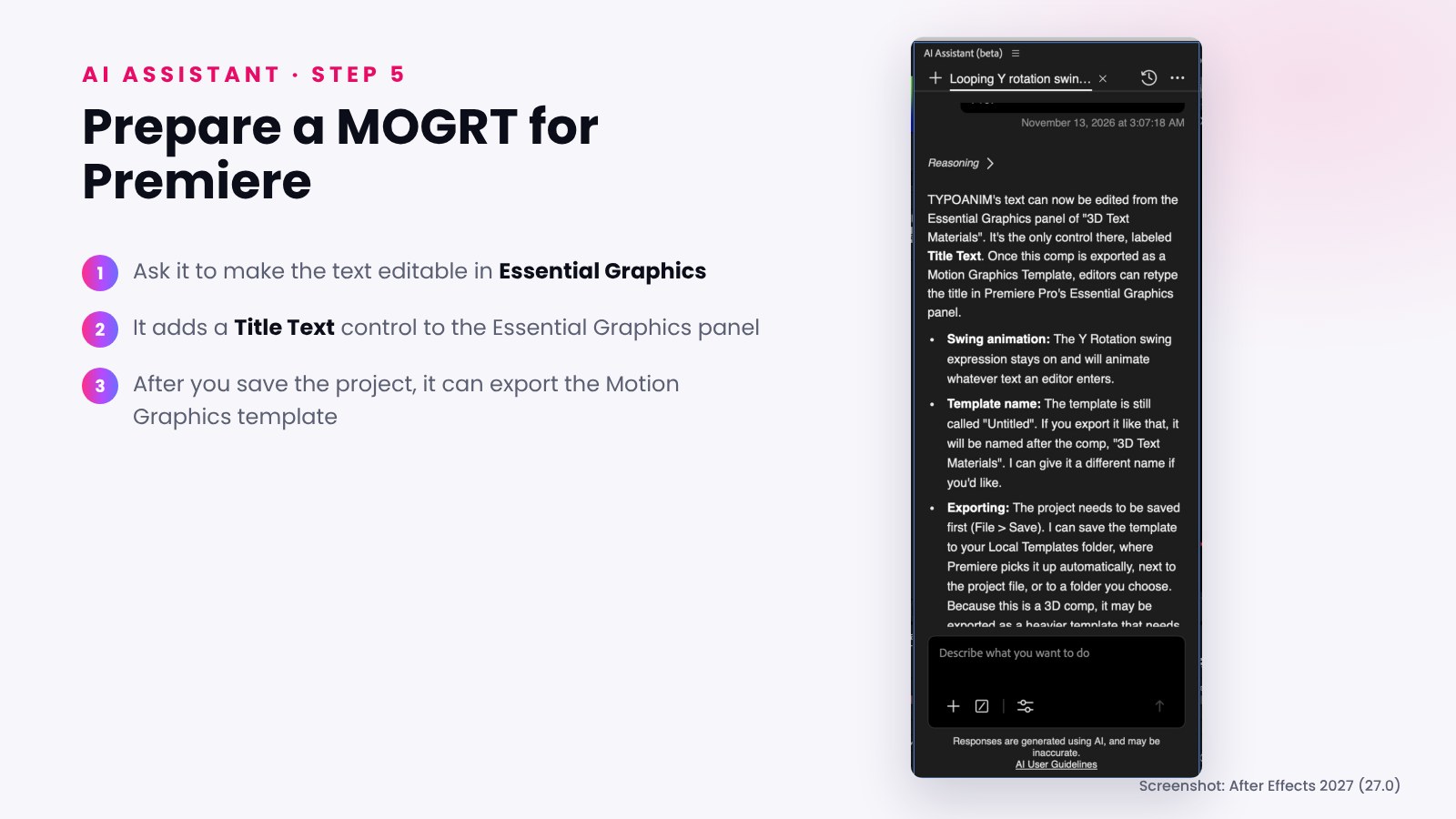
Yes. We asked: "Make the text of the TYPOANIM layer editable in Essential Graphics so it can be changed in Premiere Pro." The Assistant added the text to the Essential Graphics panel as a control called Title Text. It then explained the next steps: save the project, and it can export the Motion Graphics template to your Local Templates folder, where Premiere Pro picks it up. It also warned that a 3D comp may be exported as a heavier template that needs After Effects in the background to play in Premiere.
Step 6How do you organize an After Effects project with AI?
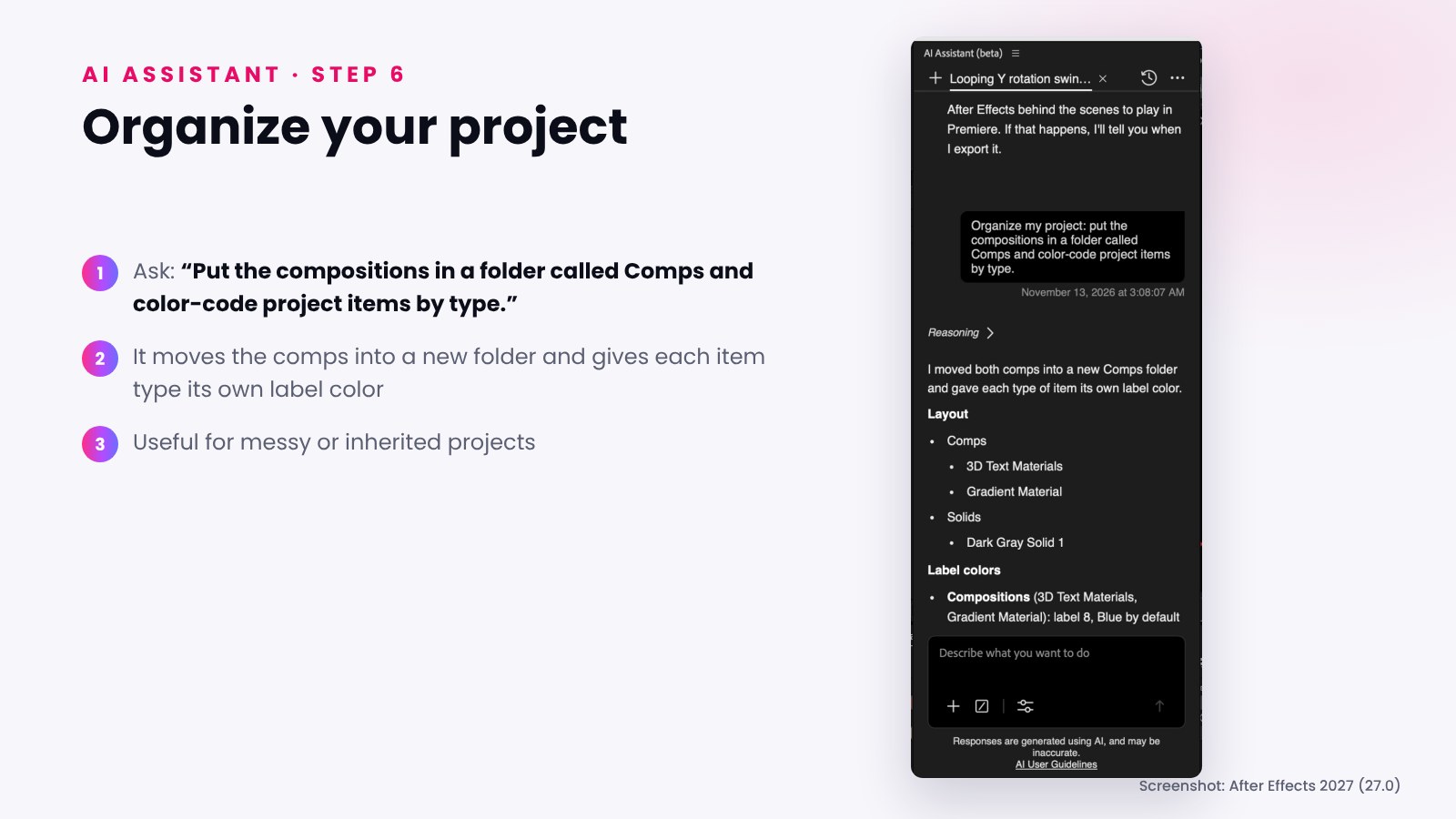
We typed: "Organize my project: put the compositions in a folder called Comps and color-code project items by type." The Assistant created a Comps folder, moved both compositions into it, kept the solids in their own folder and gave each item type its own label color. This is handy for inherited projects or big templates with dozens of comps.
Does the After Effects AI Assistant use generative credits?
According to Adobe, the AI Assistant uses generative credits for most AI-powered creative actions, such as generating and editing content, and credit usage varies by action. To see how many credits an action used, hover over the credits icon after the action is done. Adobe also says the credit rates are introductory and may change.
After Effects AI Assistant prompts to try
- "Write an expression that loops this animation."
- "Explain this expression."
- "Why is this expression throwing an error?"
- "Rename these layers by what they show."
- "Color-code my compositions by type."
- "Make the text editable in Essential Graphics."
- "Generate a background plate of a city skyline at night."
Select the layer, property or project items first when the request is about them. That gives the Assistant the right context.
AI Assistant and After Effects templates
The AI Assistant is great for understanding and cleaning up templates. Open a Typoanim template, ask the Assistant to explain an expression or to list the controls in Essential Graphics, and you will find your way around faster. All Typoanim After Effects templates support After Effects 2023 and later and include a PDF tutorial.
Browse premium After Effects templates and free After Effects templates, read how to use After Effects templates, or see all new features in After Effects 2027.
After Effects AI Assistant FAQ
Where is the AI Assistant in After Effects?
Choose Window > AI Assistant (beta), or click the AI Assistant icon in the header bar. It is part of After Effects 2027 (27.0).
Can the After Effects AI Assistant write expressions?
Yes. Describe what you want in plain words, for example a loop, a wiggle or a swing, and it writes the expression on the selected property and explains it.
Can it fix broken expressions?
Yes. Ask why an expression throws an error. In our test it found a missing parenthesis, explained the SyntaxError and fixed it.
Can I undo what the AI Assistant did?
Yes. Use Edit > Undo. It undoes one change at a time.
Is the After Effects AI Assistant free?
The panel comes with After Effects 2027, but Adobe says most AI-powered creative actions use generative credits.
After Effects AI Assistant: the short version
Open Window > AI Assistant (beta), select what you want to change and describe the task in plain words. Approve the action and the Assistant does the work: it writes looping expressions, fixes errors like a missing parenthesis in wiggle, prepares Essential Graphics for MOGRT templates and organizes your project. You can undo every change.
— Mansura