
How to Add Lower Thirds in Premiere Pro 2027 (MOGRT Step by Step)
Learn how to add lower thirds in Premiere Pro 2027 with a MOGRT: install the template, drag it onto your video, change the name, title and colors, and adjust size, position and timing.
 6 min read
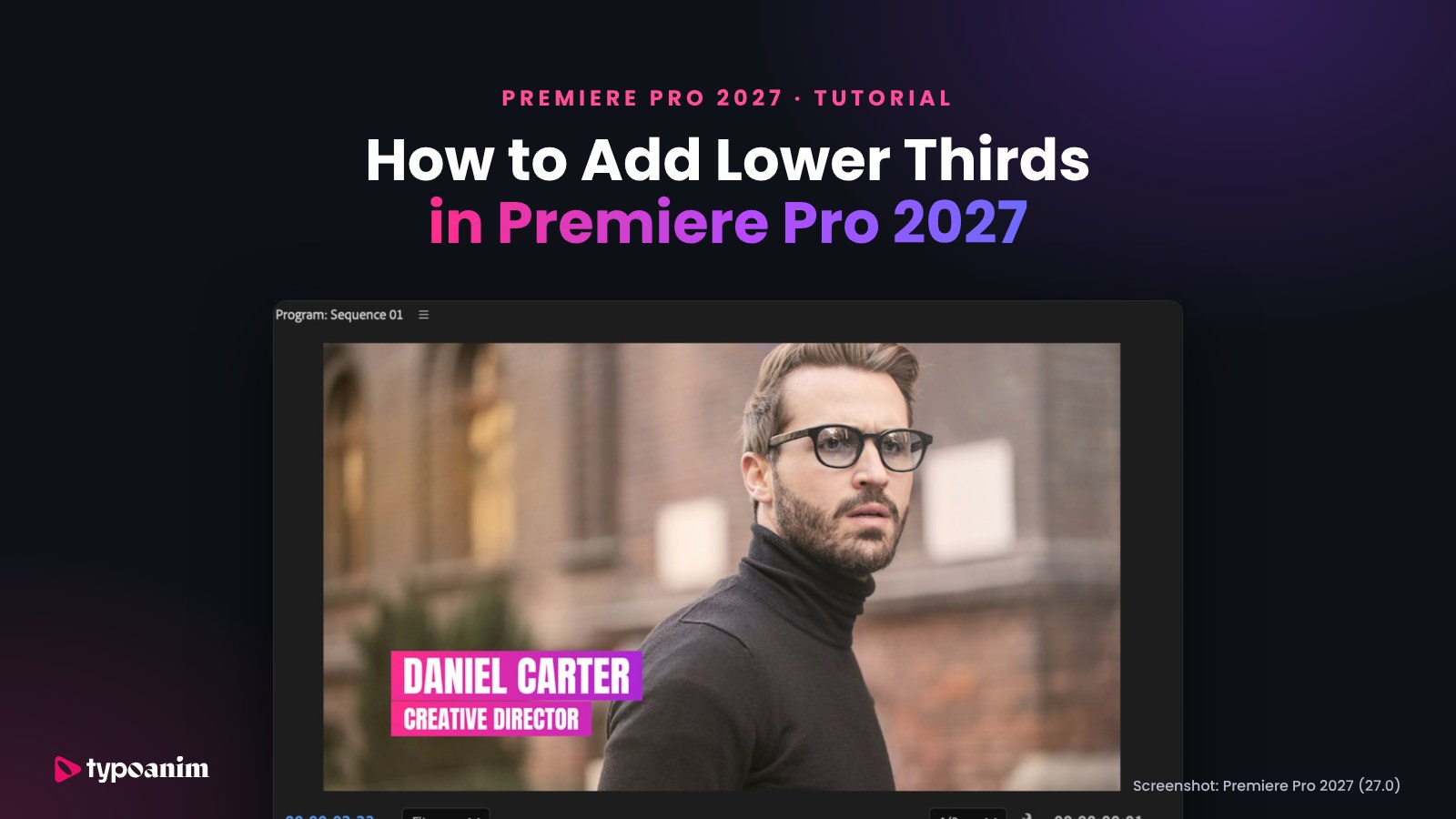
Premiere Pro 2027 (version 27.0): we made this tutorial in the real Premiere Pro 2027, step by step. The lower third we used is our own Colorful Gradient Name Strips MOGRT, but the steps are the same for any Motion Graphics template.
A lower third is the name and title you see at the bottom of the screen in interviews, podcasts, YouTube videos and news. It tells viewers who is speaking. In Premiere Pro 2027 the easiest way to add a professional, animated lower third is a Motion Graphics template (MOGRT): you install it once, drag it onto your video and type the name.
In this guide you will learn how to add lower thirds in Premiere Pro 2027: install a MOGRT, find it in the Graphics Templates panel, place it on the Timeline, change the name, title and colors, and adjust the size, position and timing.
In this lower thirds tutorial
Step 1How do you install a lower third MOGRT in Premiere Pro 2027?
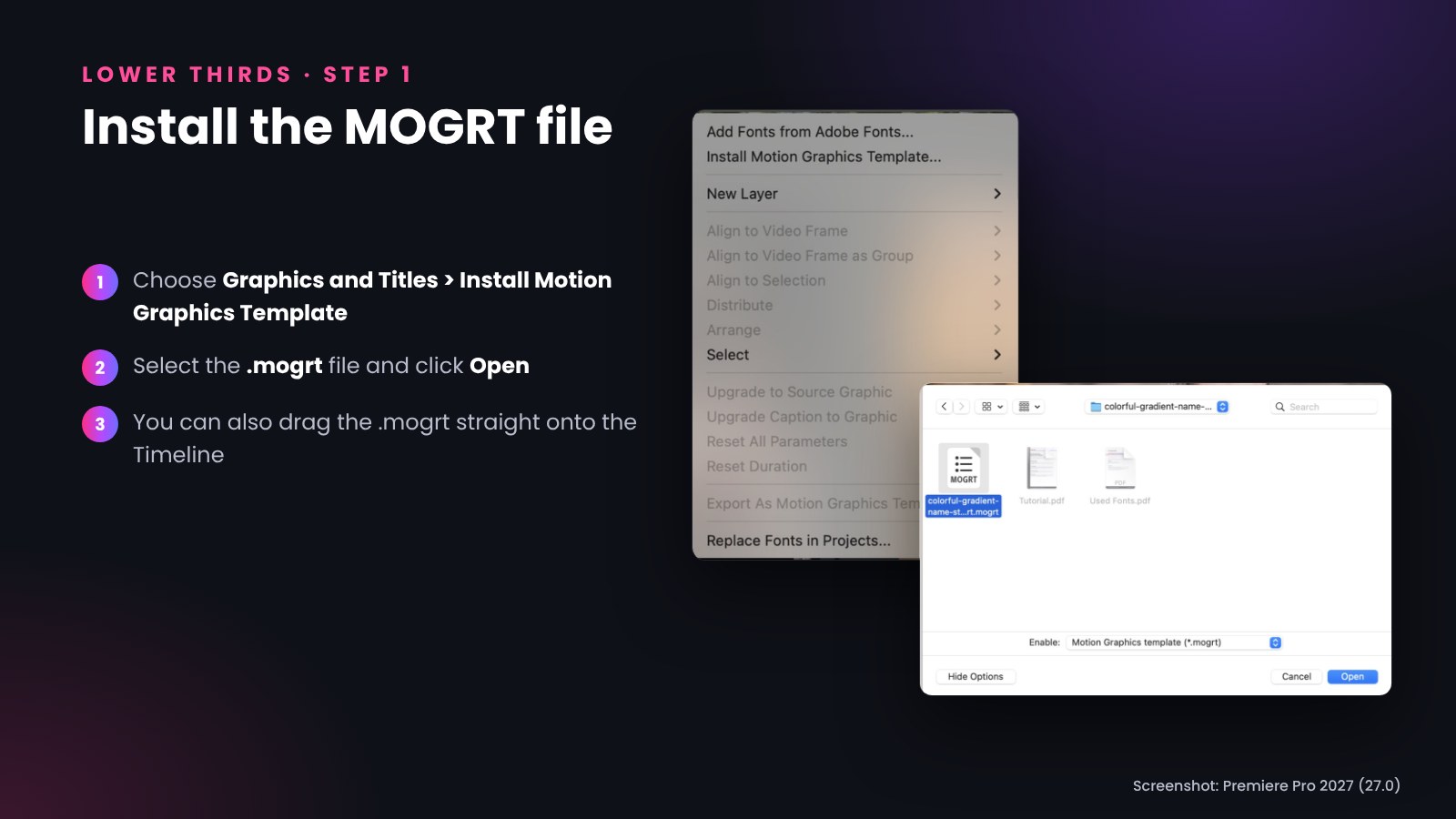
- Unzip the template you downloaded. Typoanim templates come with the .mogrt file, a PDF tutorial and a list of the fonts used.
- Install the font first. Our lower third uses Anton, a free Google Font.
- In Premiere, choose Graphics and Titles > Install Motion Graphics Template.
- Select the .mogrt file and click Open.
You can also drag the .mogrt file from Finder or File Explorer straight onto the Timeline.
Step 2Where are installed lower thirds in Premiere Pro?
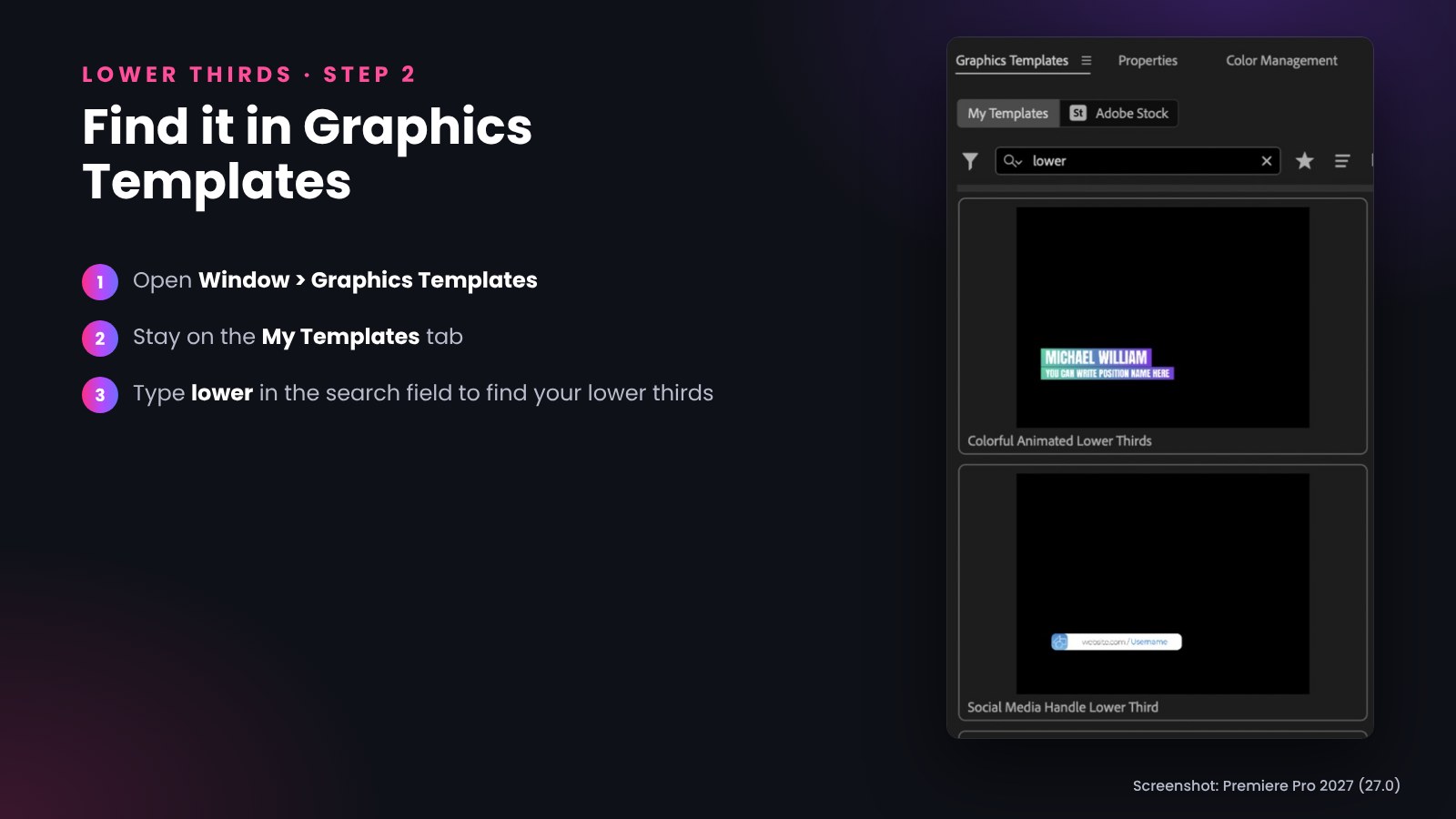
- Open Window > Graphics Templates.
- Click the My Templates tab.
- Type lower in the search field.
Note: the name in the panel comes from inside the MOGRT. Our template shows up as Colorful Animated Lower Thirds.
Step 3How do you add a lower third to your video?
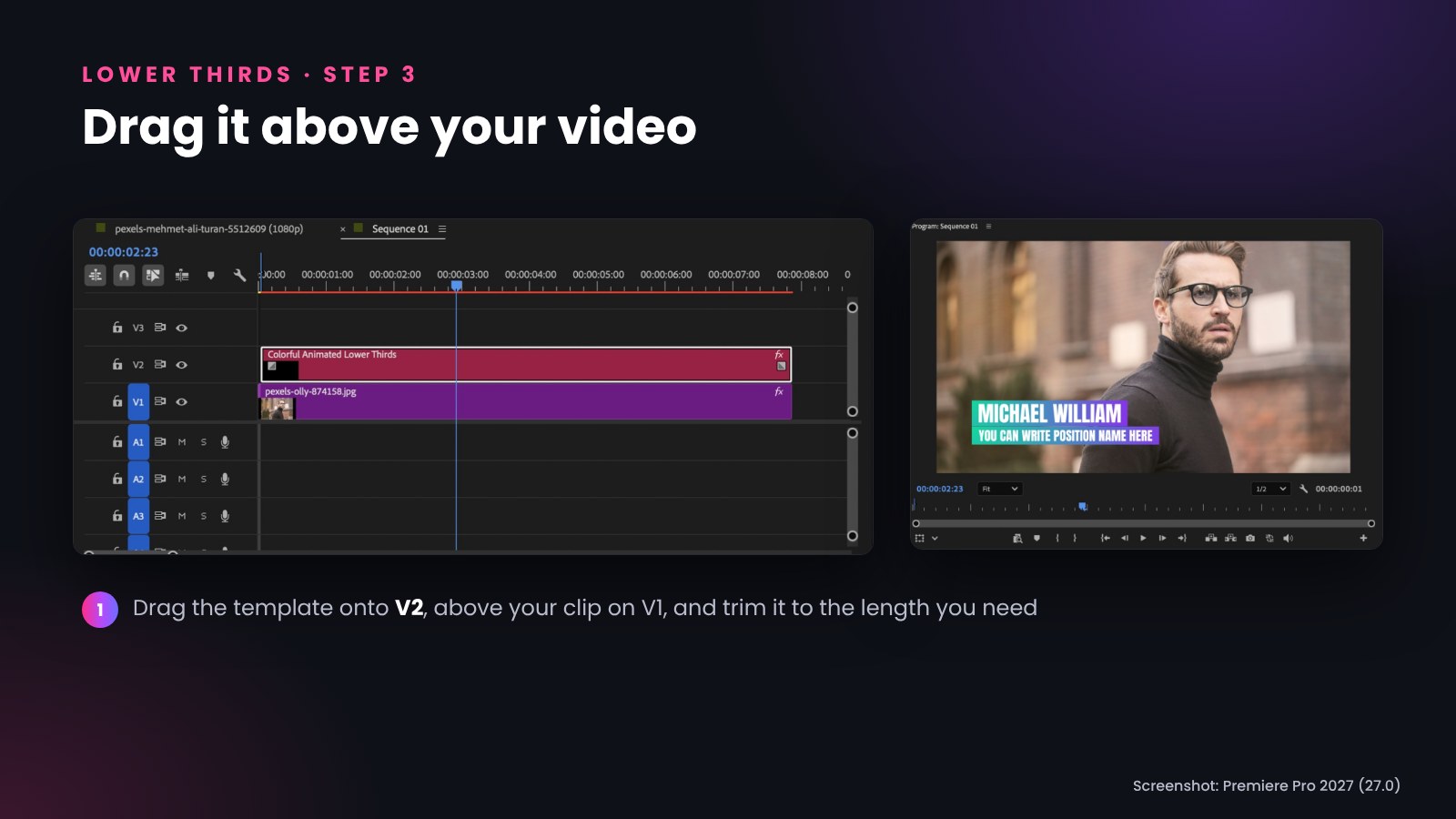
- Drag the template from the Graphics Templates panel onto V2, above your interview clip on V1.
- Line up its start with the moment the person starts talking.
- Drag the right edge of the clip to make it shorter or longer. We used about 8 seconds.
The Program Monitor now shows the lower third with its sample text, for example "MICHAEL WILLIAM / YOU CAN WRITE POSITION NAME HERE".
Step 4How do you edit the text of a lower third?
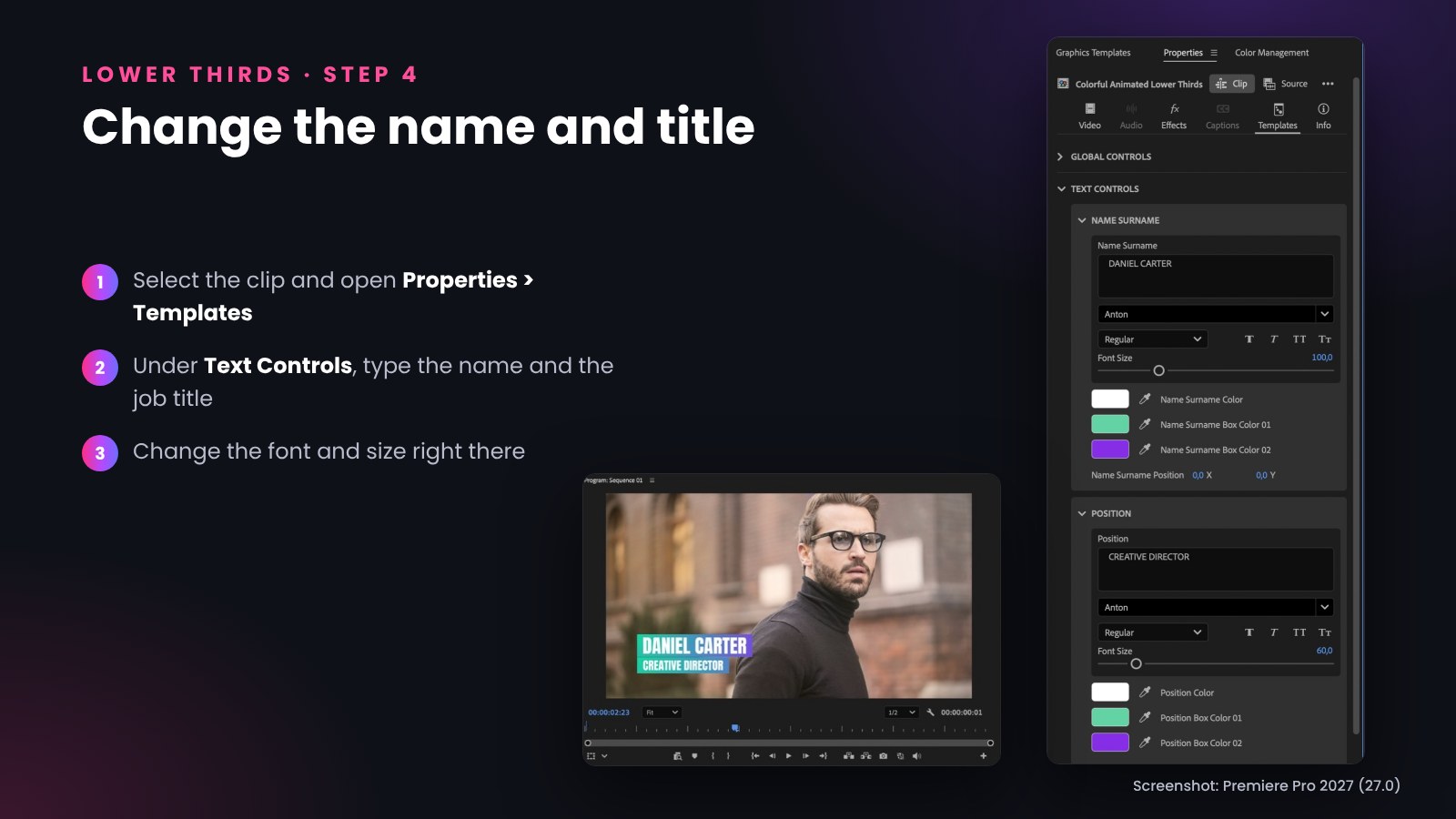
- Select the lower third clip on the Timeline.
- Open the Properties panel and click the Templates tab.
- Expand Text Controls. Type the name in Name Surname and the job title in Position. We typed "DANIEL CARTER" and "CREATIVE DIRECTOR".
- Change the font, style and size right there if you need to.
The boxes behind the text grow and shrink automatically with your text, so long names still look right.
Step 5How do you change the colors of a lower third?
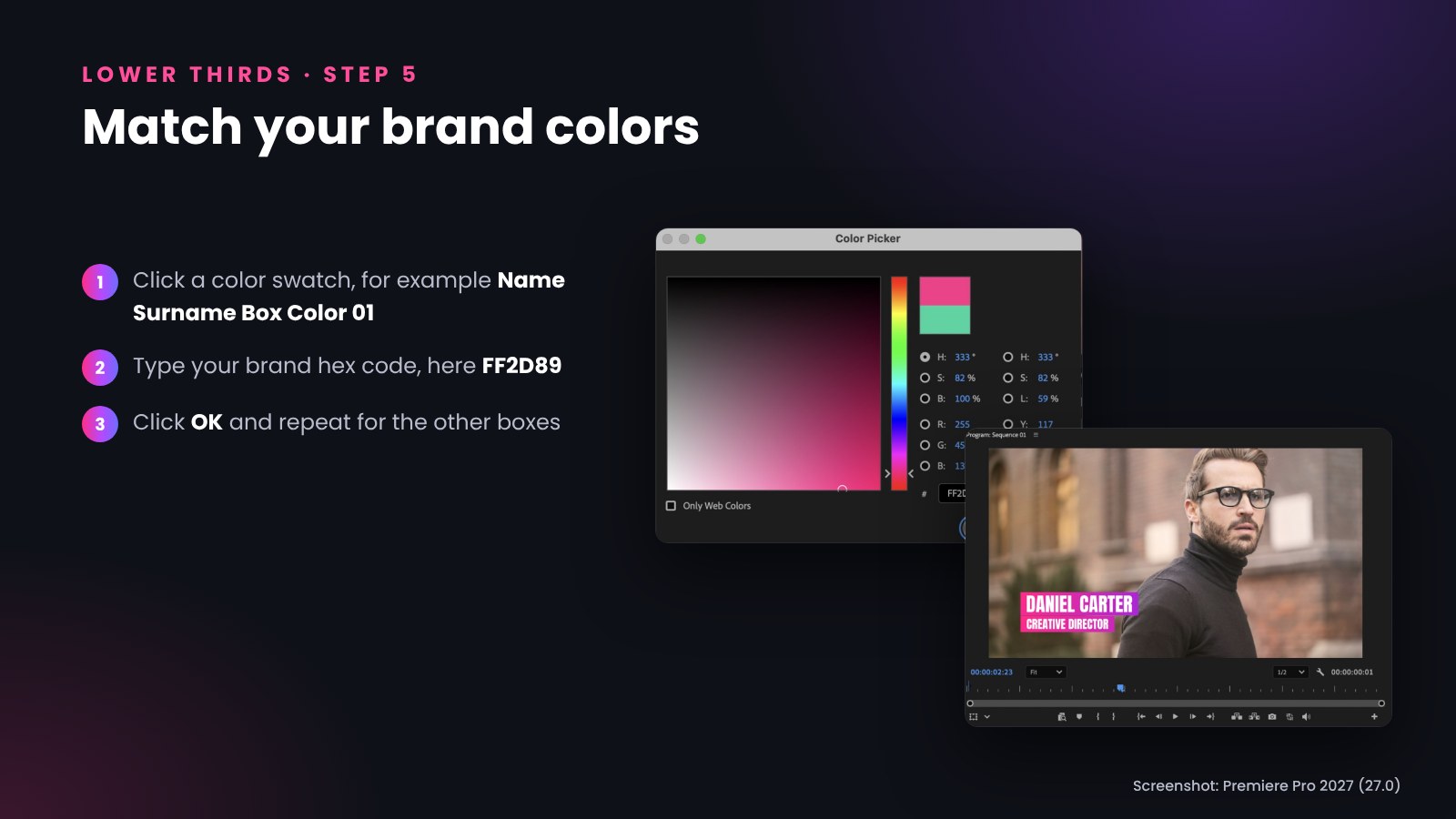
- In Text Controls, click a color swatch, for example Name Surname Box Color 01.
- In the Color Picker, type your brand hex code. We used FF2D89.
- Click OK, then repeat for the other boxes and the text colors.
Step 6How do you move and resize a lower third?
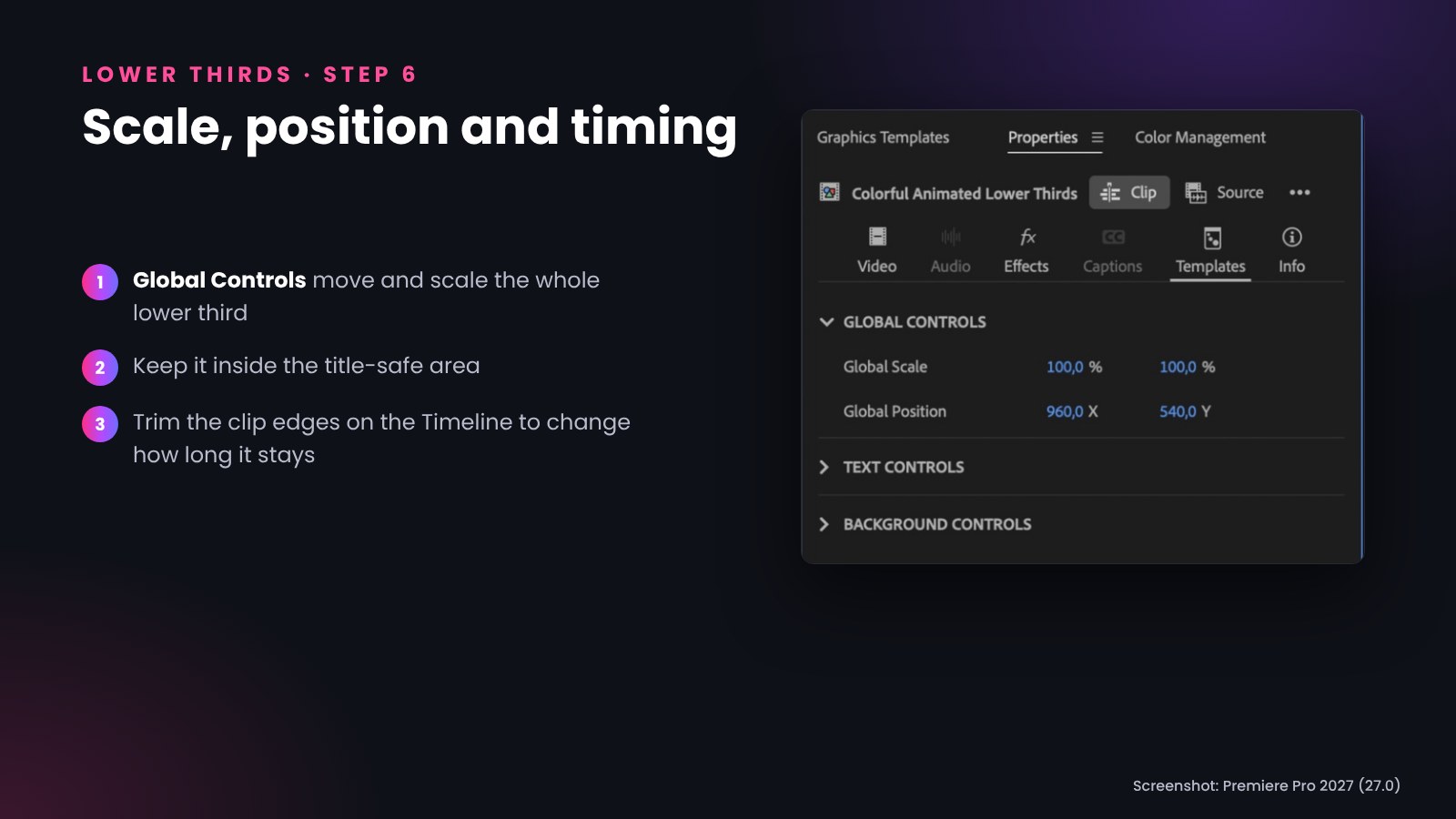
- Expand Global Controls in the Templates tab.
- Use Global Scale to make the lower third bigger or smaller.
- Use Global Position to move it, for example to the right side if your speaker is on the left.
Keep the text inside the title-safe area so it is not cut off on TVs and phones.
The result
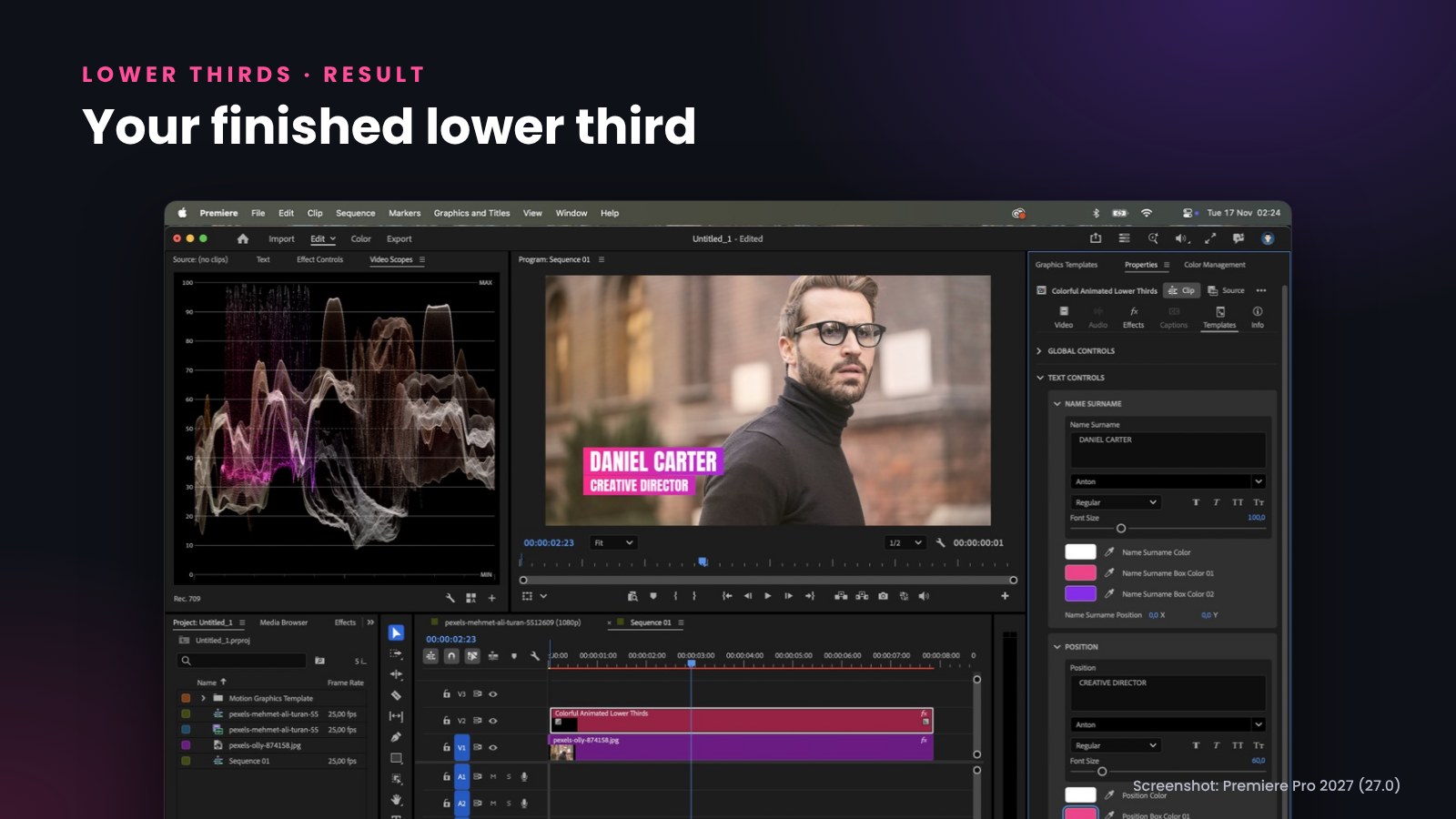
Tips for better lower thirds in Premiere Pro
- More speakers? Hold Option (Mac) or Alt (Windows) and drag the lower third to copy it, then change only the text.
- Timing: show the lower third for about 4 to 8 seconds, right after the person starts speaking.
- Short text: a name and a short title are easier to read than a long sentence.
- Same style: use the same lower third and colors for the whole video, so it looks consistent.
- Fonts: if the text looks different from the preview, install the fonts listed in the template's font file and restart Premiere.
Lower third templates for Premiere Pro
All Typoanim lower thirds work in Premiere Pro 2023 and later, including Premiere Pro 2027, and every template includes a PDF tutorial.
Browse premium Premiere Pro lower thirds, free Premiere Pro lower thirds and After Effects lower thirds, or read how to use MOGRT templates in Premiere Pro.
Lower thirds in Premiere Pro: FAQ
What is a lower third?
A lower third is a graphic in the lower part of the screen that shows a person's name and title, or other short information.
How do I add a lower third in Premiere Pro 2027?
Install a MOGRT with Graphics and Titles > Install Motion Graphics Template, drag it from the Graphics Templates panel onto V2 above your clip, then edit the text in Properties > Templates.
Where do I edit the text of a MOGRT?
Select the clip and open the Properties panel. The Templates tab shows all the controls the template designer exposed, such as text, colors, scale and position.
Can I change the colors of a lower third?
Yes, if the template has color controls. Click a color swatch and type your hex code.
Do Premiere Pro lower third templates work in older versions?
Our templates work in Premiere Pro 2023 and later. Each template page lists the version it needs.
How to add lower thirds in Premiere Pro 2027: the short version
Install the MOGRT with Graphics and Titles > Install Motion Graphics Template, find it in Graphics Templates > My Templates, drag it onto V2 above your clip, and edit the name, title and colors in Properties > Templates. Use Global Controls to scale and move it, and trim the clip to set how long it stays on screen.
— Mansura